
This article was automatically translated from Japanese using AI. The Japanese version is the authoritative version.
Here I’ll walk through installing Anaconda on macOS and setting up the terminal environment.
Installing Anaconda
Go to the Anaconda homepage and scroll down to find the downloads.
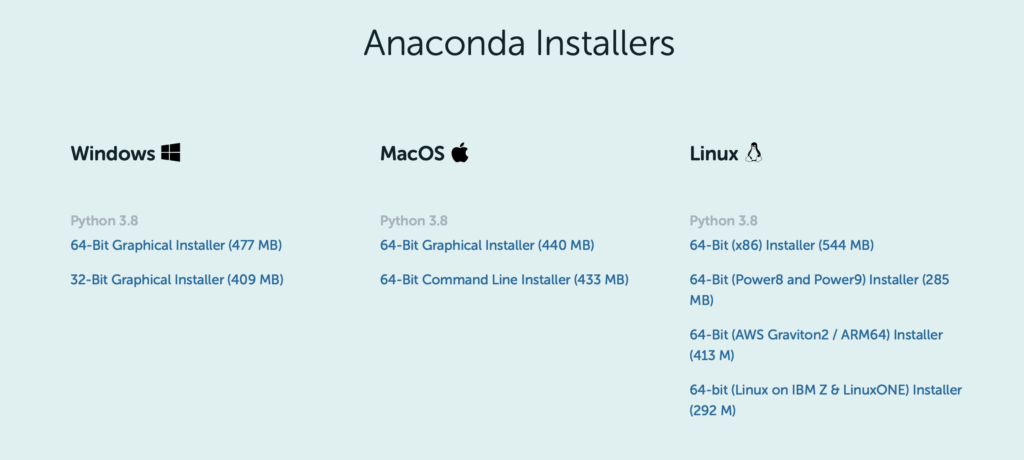
Choose the installer that matches your environment.
Since this guide covers macOS, select the 64-bit Graphical Installer.
Launch the installer and follow the instructions to complete the installation.
There are two installers for Mac. The 64-bit Graphical Installer installs Anaconda through a GUI, which is the more familiar approach, and unless you have a specific reason otherwise, this is the one to use.
Downloading the 64-bit Command Line Installer gives you a *.sh file.
This is a shell-script installation, used when you want to install from the terminal.
Since installing software on Linux is normally done from the terminal, people used to Linux may find this option easier. (Probably.)
Configuring the command line environment
After installing on macOS, all you get is Anaconda-Navigator in your applications list — as is, you can’t use Anaconda or Python from the terminal.
If you want to use the conda command to install packages and so on, you need to activate Anaconda.
To activate Anaconda (i.e., to make the conda command available):
conda activateRun the above.
The conda command should now work.
If activating the conda environment every time is a hassle, you can have it activate automatically.
To do so, run the following in the terminal:
~/opt/anaconda3/bin/conda init シェル名Run the above.
Use the name of the shell you actually use. If you have no idea what that means and have never changed it, you’re probably on the default shell (zsh on macOS), so substitute that for the shell name.
~/opt/anaconda3/bin/conda init zshNow, when you restart the terminal, the conda environment will be activated automatically and you won’t need to type conda activate.
To turn off automatic activation,
conda config --set auto_activate_base falserun the above in the terminal.